This tour is a projector-ready presentation of the patient app at https://med.vwid.am. Arrow keys and Space change slides. F is fullscreen, G is the slide grid, P prints a handout.
Open the site on your phone or computer. No app-store install.
Languages: Armenian, Russian, English — switch any time (HY / RU / EN).
Staff use a different login at /manage. Patients never need that page.
+
Med CRM
Start2 / 13
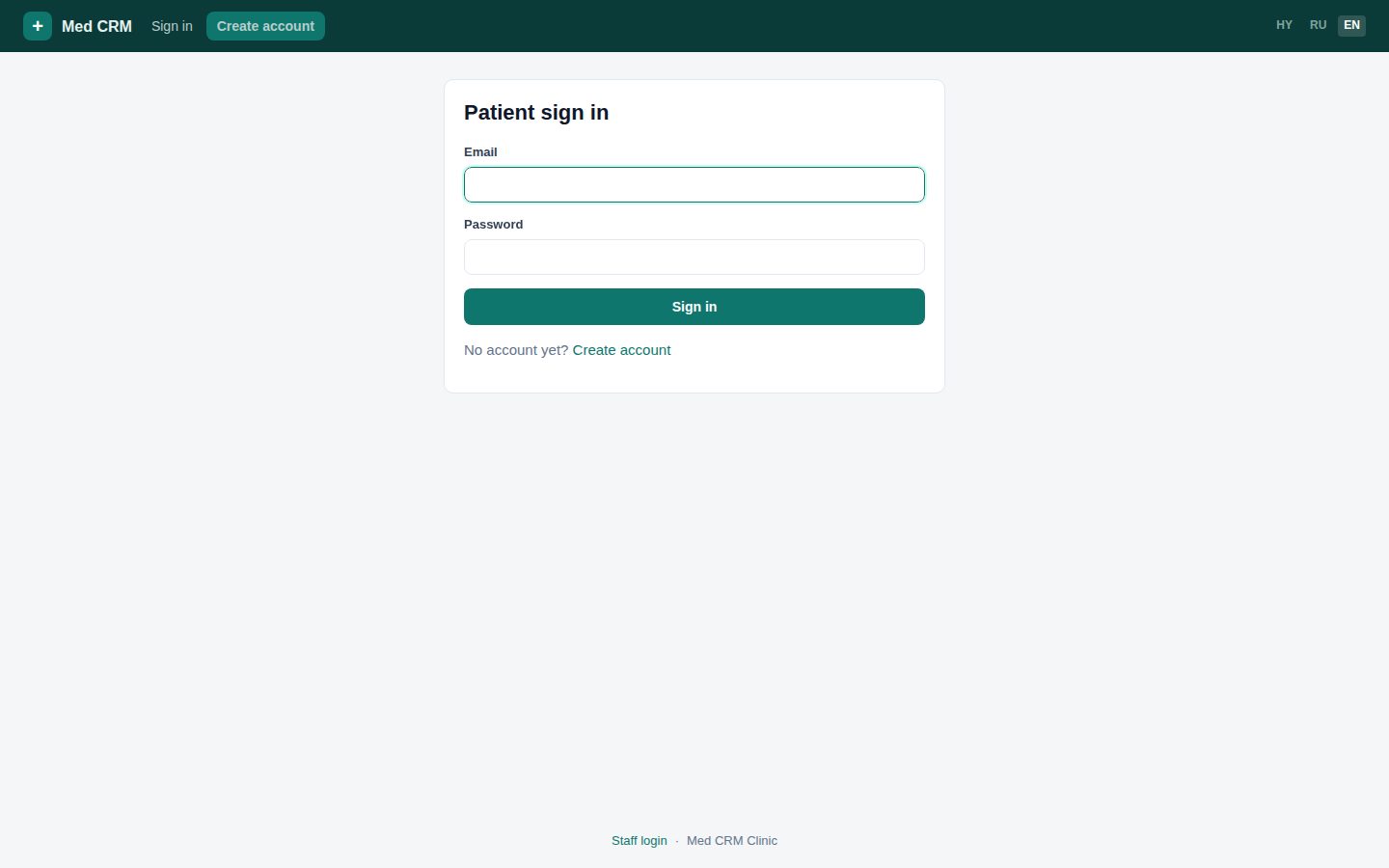
Landing — register or sign in
If the desk already typed your email on the paper chart, register with that same email so the records join.
Register if you are new to the portal. Login if you already created a password.
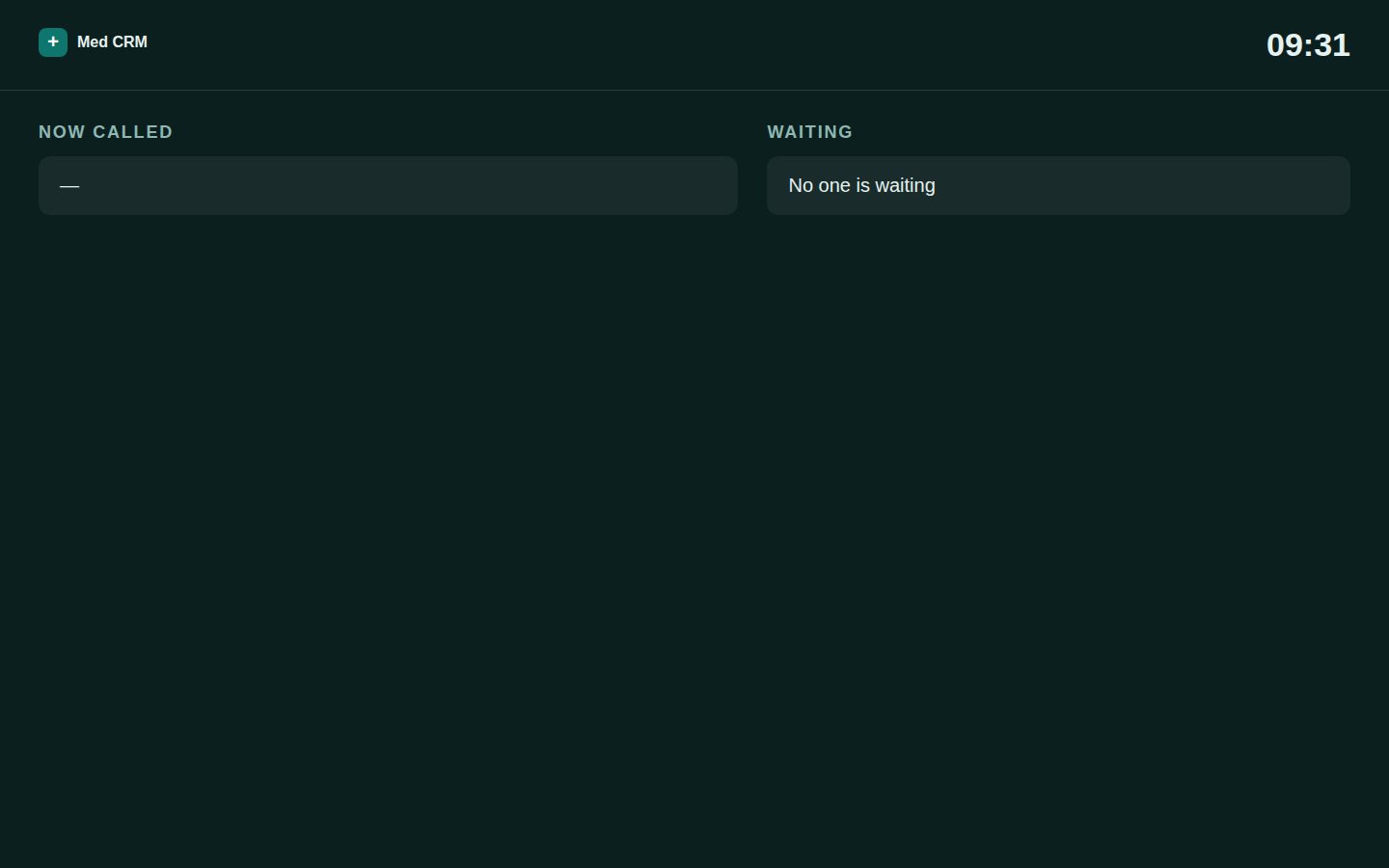
The waiting-room TV is not this site. In the clinic, watch the ticket screen.
Account3 / 13
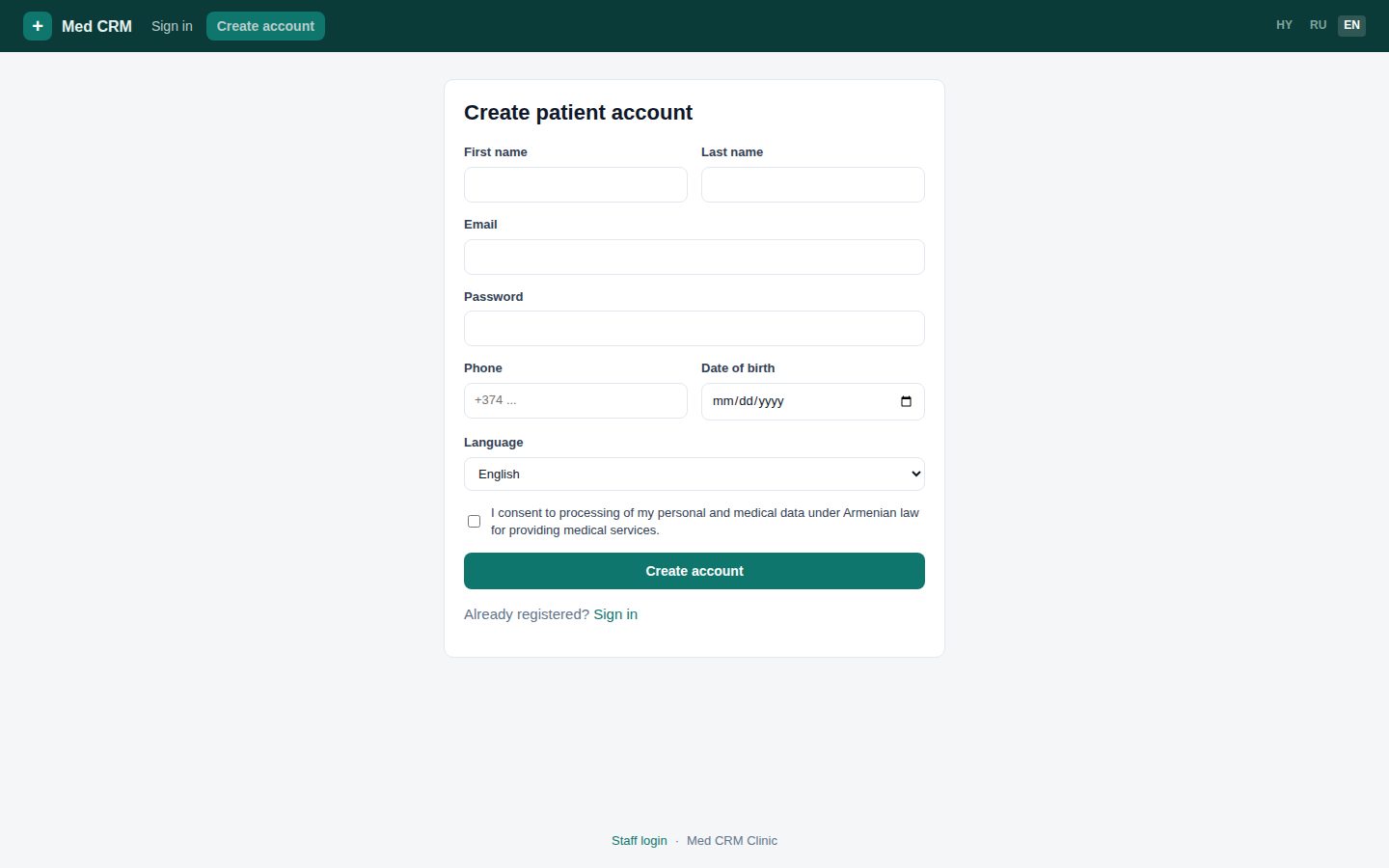
Register and consent
Password at least 8 characters. You must tick consent (Armenian personal-data rules). Without the tick, the form will not submit.
First name, last name, email, phone, date of birth — use the same data the desk has.
If that email already has a portal password, the site says it is taken — use Login instead.
If the desk created you without a portal password, this register step attaches the password to that chart.
Account4 / 13
Sign in next time
Email + password. There is no forgot-password yet — call the desk.
Open /login. After success you land on Home.
Sign out on a shared phone (top right).
Use5 / 13
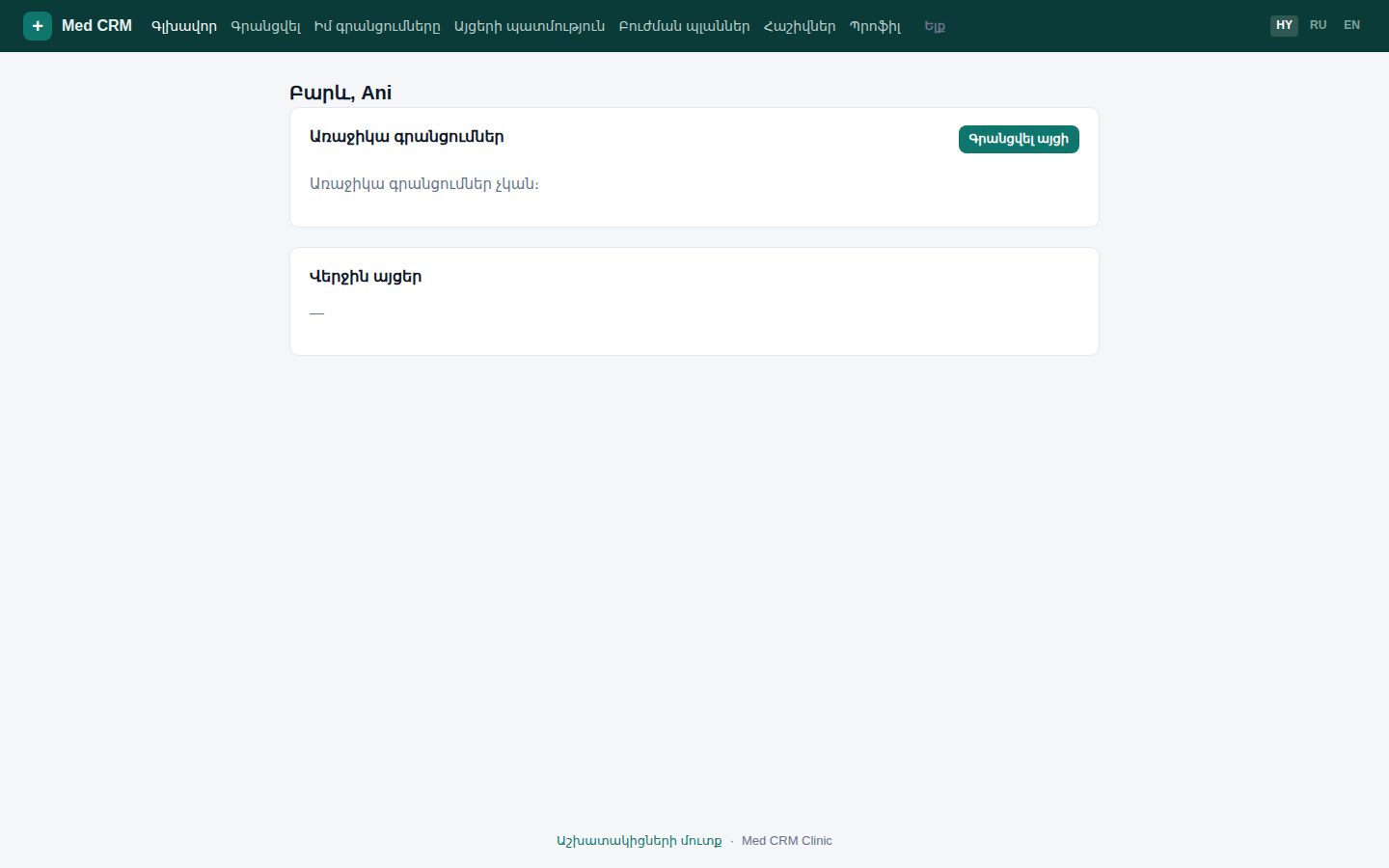
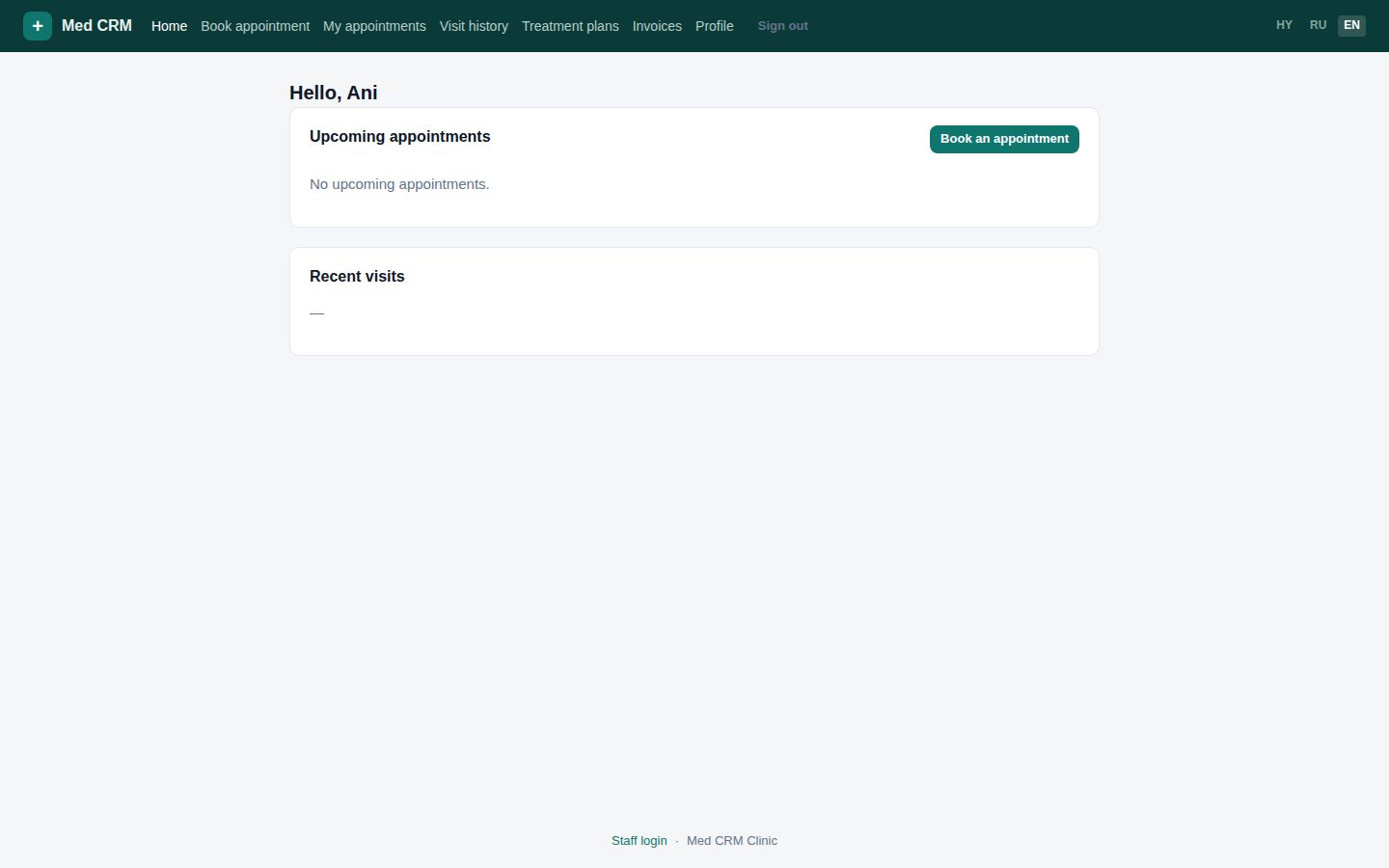
Home — what is next
Upcoming appointments and recent visits. Use the top menu for Book, Appointments, Visits, Plans, Invoices, Profile.
If nothing is booked, press Book an appointment.
A visit row is a day you already came (ticket, status). It is not a new booking.
Use6 / 13
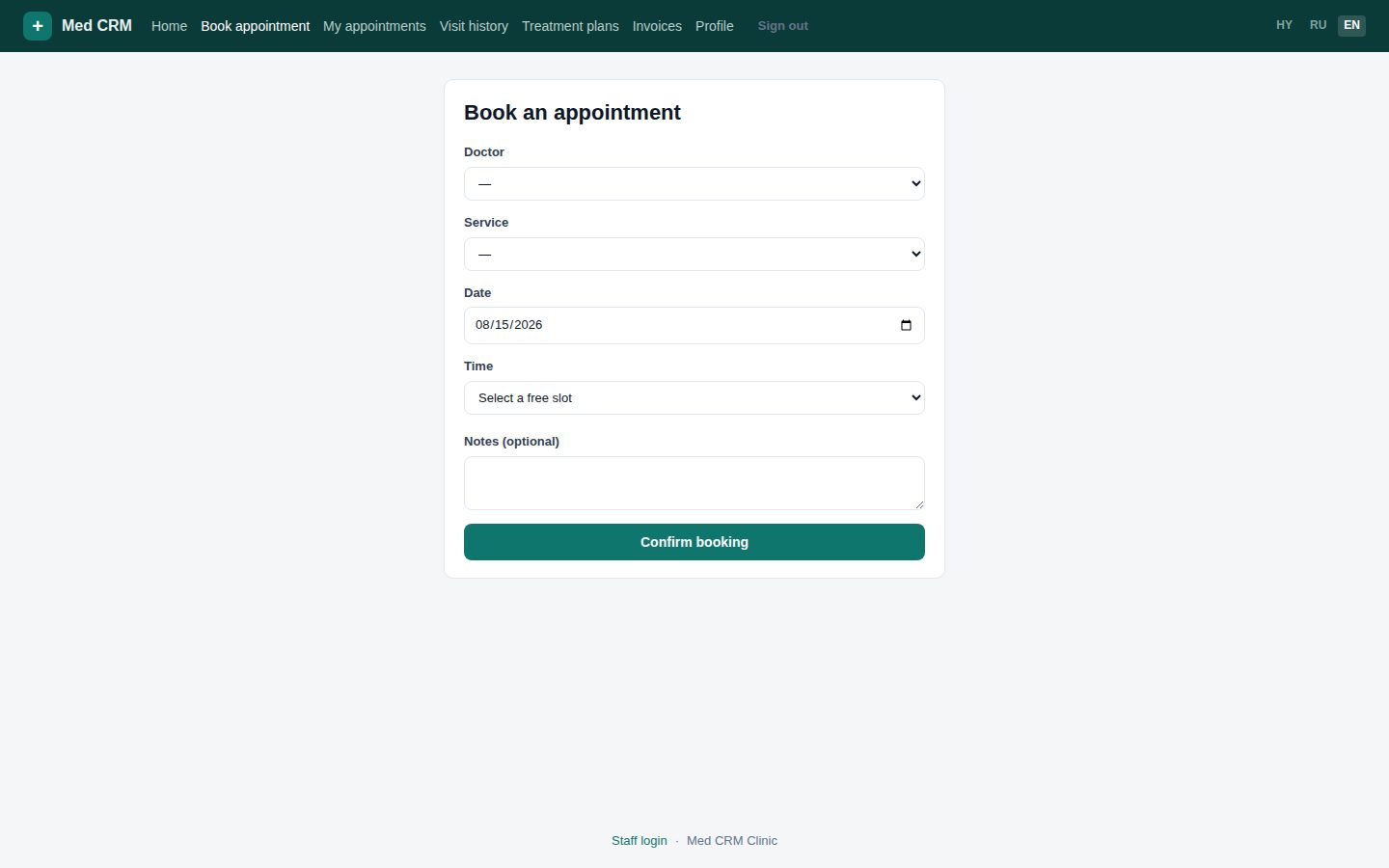
Book a doctor and a time
Choose doctor, service, date. Only free times for that doctor appear. Slot length depends on the doctor (often 20 minutes) and the service.
Specialty under the doctor name is shown in your language.
If no times: try another day, or call the desk — the doctor may be off or full.
You get an email confirmation if clinic mail is configured and notify-email is on.
Reminders: 48 hours and 3 hours before the start (email today; SMS/WhatsApp later).
Use7 / 13
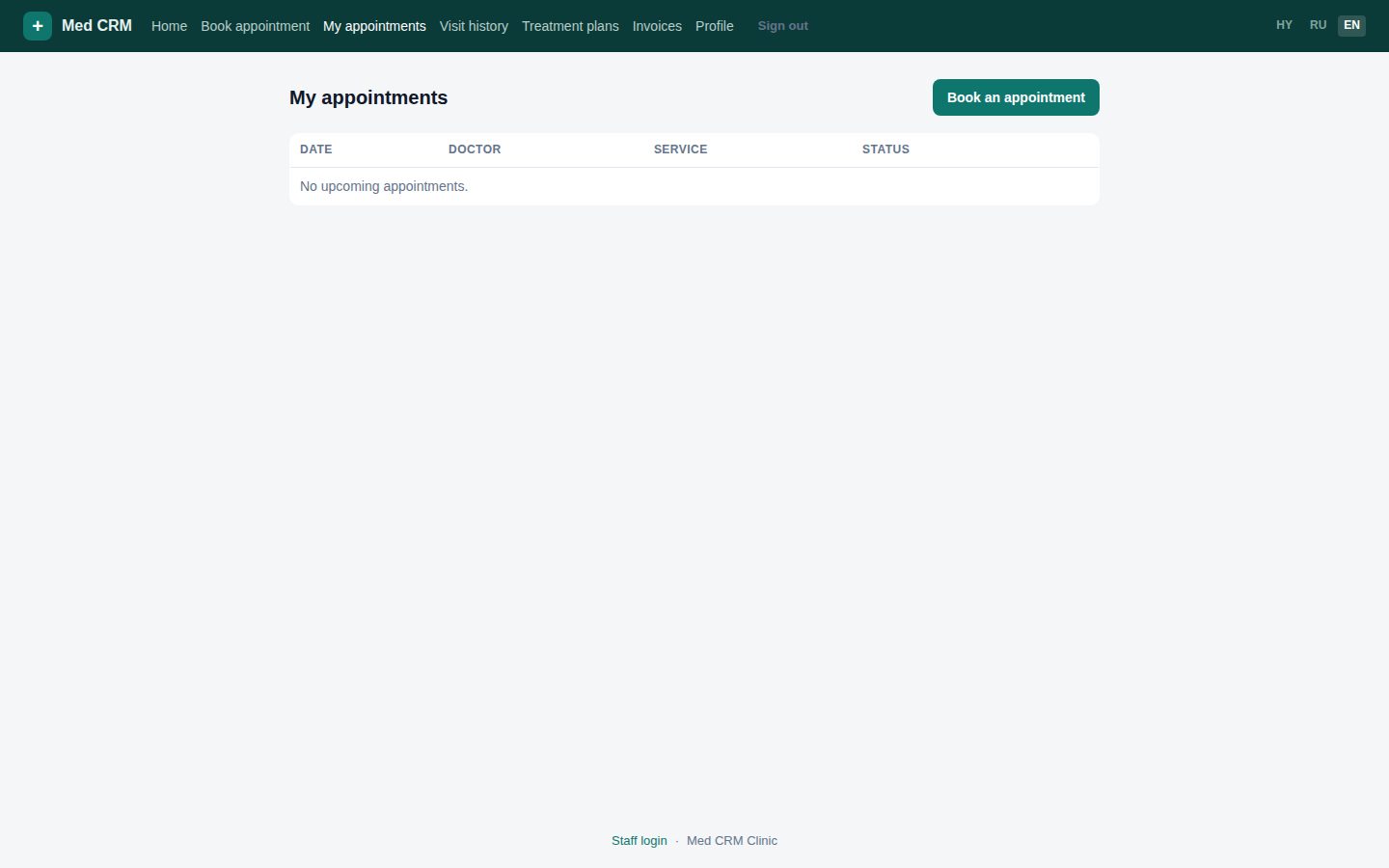
My appointments — cancel in time
You may cancel if the visit is more than 3 hours away. Inside 3 hours, call the desk.
Each row: doctor, service, date and time, status.
Cancelled bookings free the slot for someone else. Please cancel instead of just not coming.
Use8 / 13
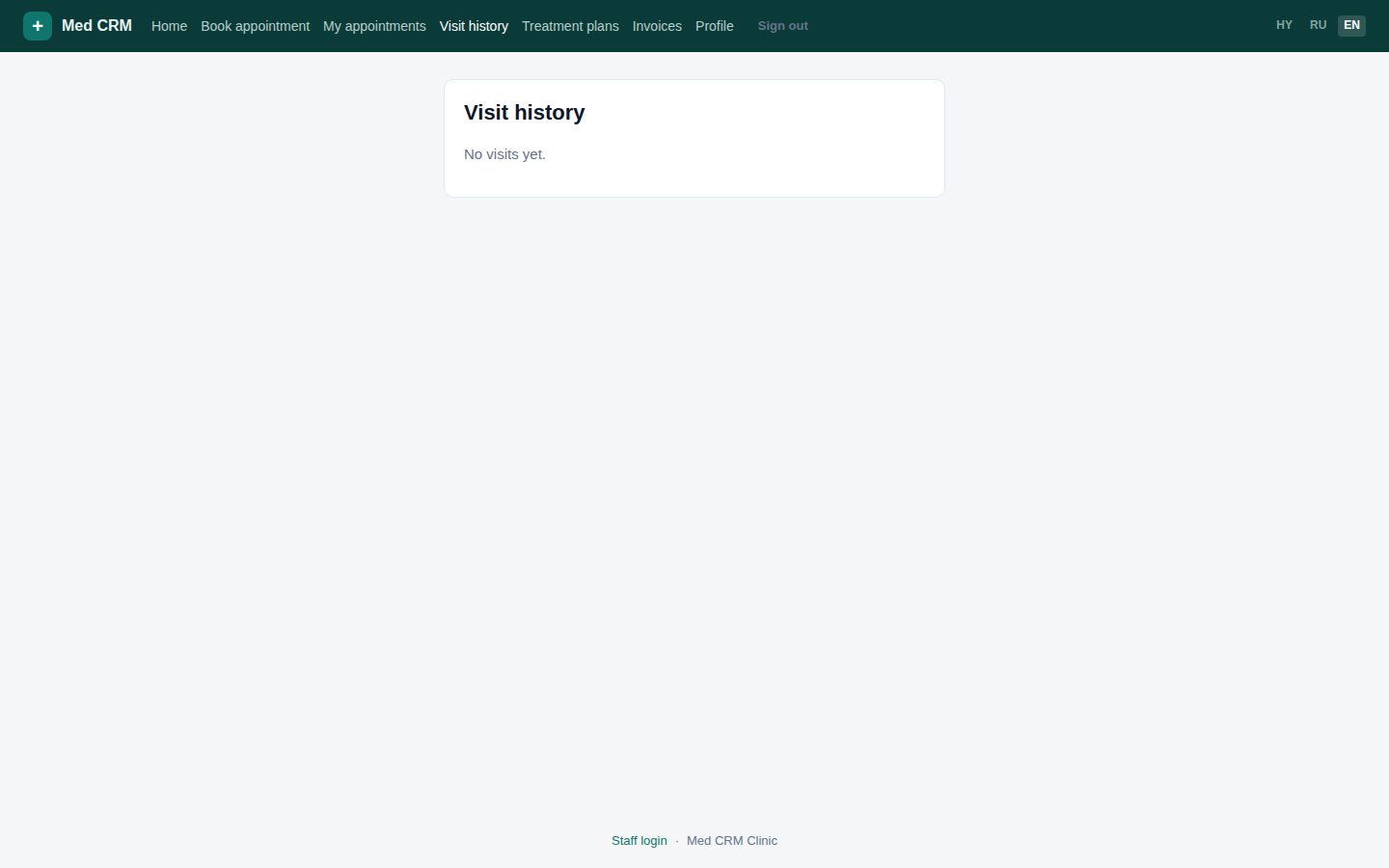
Visits — your ticket that day
A visit is created when the desk checks you in or takes a walk-in. You see the ticket and the step labels — not the clinical note.
Remember the ticket (A-104). The TV in the waiting room shows only that number and the room.
Diagnosis and prescription stay with the doctor. Ask them in the room if you need a copy.
Use9 / 13
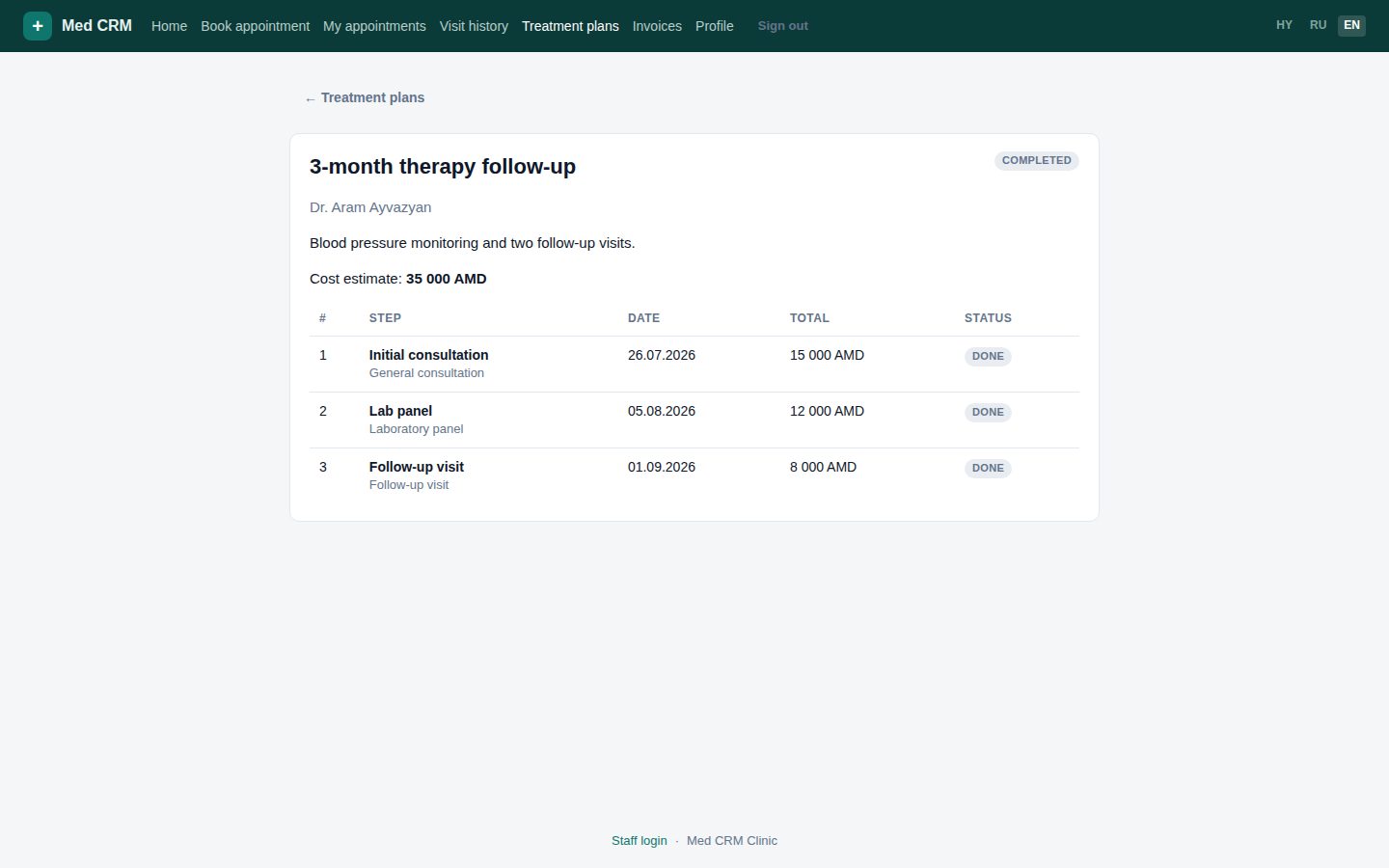
Treatment plans — read and accept
When a doctor activates a plan, it appears here. Accept means you agree to the course and the estimate. Drafts stay hidden until activation.
Open a plan to see steps, who performs them, planned dates, and prices.
Accept on the plan page. The desk and doctor then see that you agreed.
Completed steps stay visible so you can track the course.
Use10 / 13
Invoices — view, pay at the desk
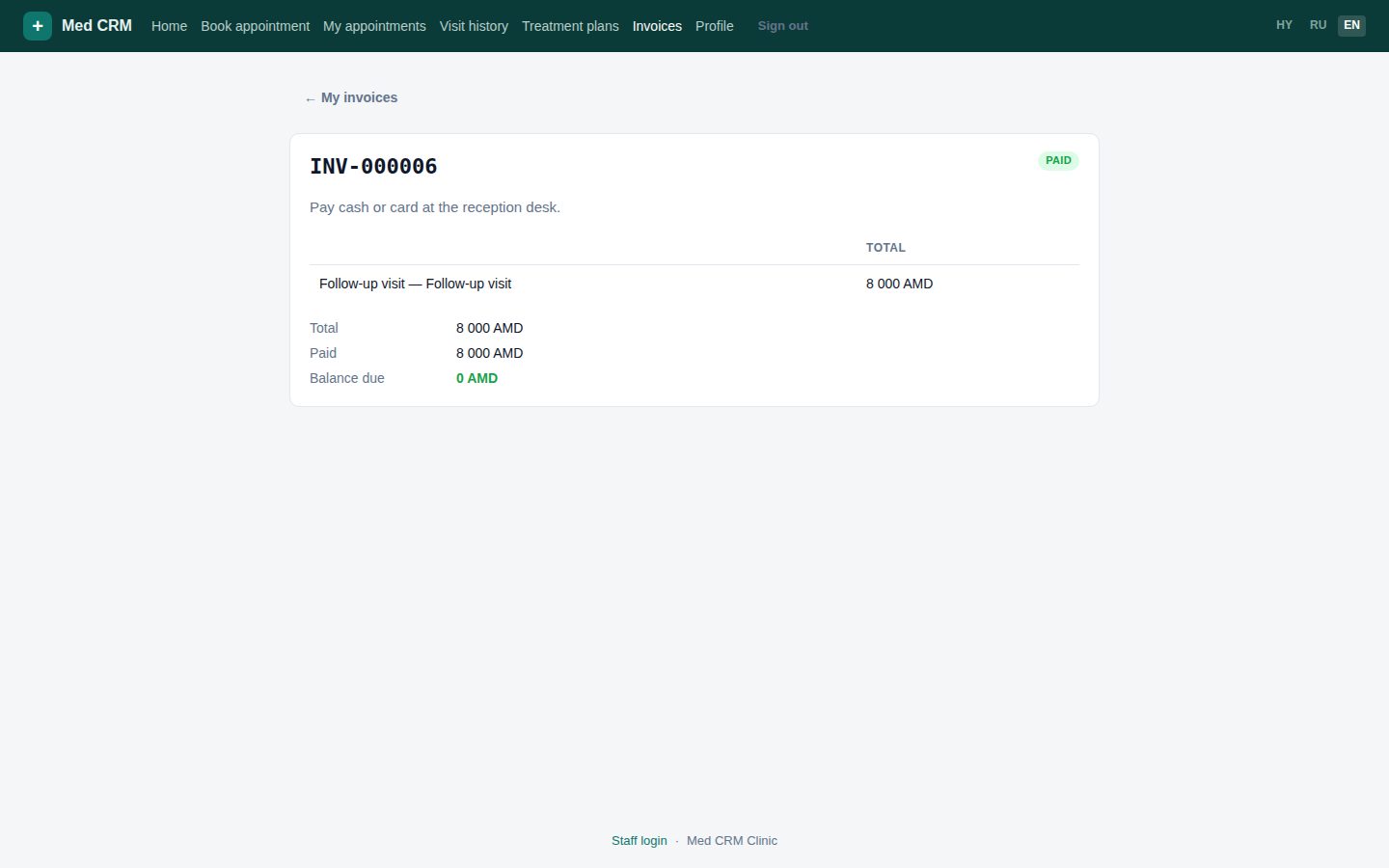
Invoices are AMD. Status open / partial / paid. There is no card pay in the portal. Bring the invoice number to the cashier.
Open an invoice to see each line (consult, lab, plan step, walk-in).
Partial means you already paid some of it. The desk can take the rest in cash or card.
Void invoices are hidden from you.
Use11 / 13
Profile, language, files
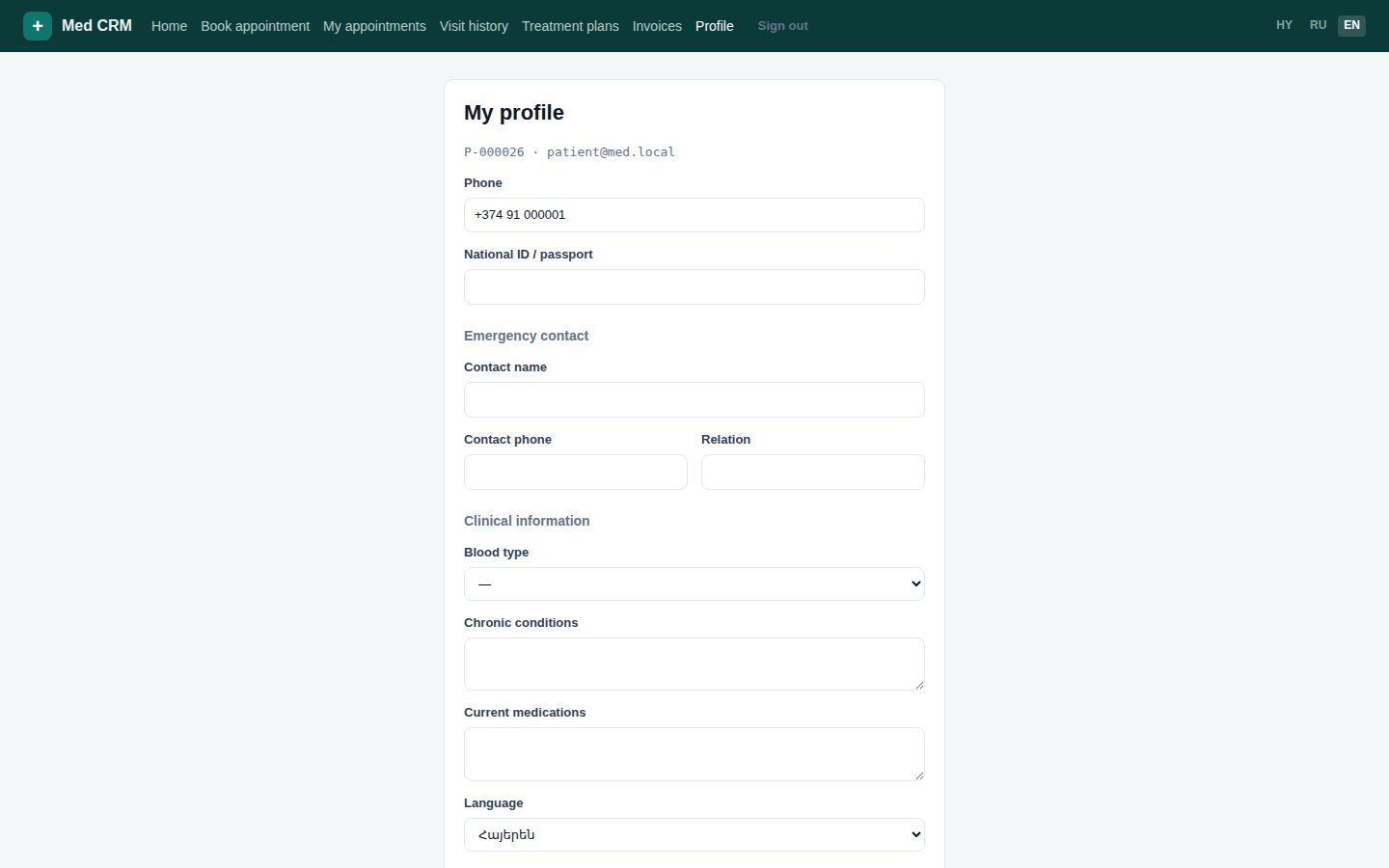
Update phone, national ID, emergency contact, blood type, chronic conditions, medications. Change password (min 8). Upload ID or referrals.
Notification toggles: email is live. SMS and WhatsApp say coming soon.
Files: JPEG, PNG, WebP, GIF, or PDF, max 8 MB. You can delete only files you uploaded.
Staff can also attach files to your chart. You may not see every staff file here.
At the clinic12 / 13
What happens when you arrive
Go to the desk. They find you by name or MRN, check you in, and give a ticket. Watch the TV. Pay at the same desk before you leave if a balance remains.
Booked visit: say the time and the doctor. Walk-in: say you do not have a booking.
Triage or nurse may see you first, then the doctor, then lab or imaging if ordered, then back to the doctor.
Do not wait at the desk after you have a ticket — the screen will call your number.
End13 / 13
You can book on your own now
This page stays at /tour/patient. Staff training is /tour/staff.